
Storage Usage
The Storage Usage page lets you review Omnibot's local disk usage and clean up reclaimable data. It combines analysis ("where is the space going?") and action ("what can I safely remove?") in one place, so you can quickly identify problems when storage runs low, model imports fail, caches pile up, or after extended use.
What this page covers
This page is designed to answer three questions:
- Which content categories are consuming space right now
- Which items can be safely cleaned and which require caution
- Whether there is a recommended path for freeing up space quickly
If you use local models, long-running workspaces, frequent attachments, or scheduled automation, this page is more targeted than system-level storage stats because it focuses on Omnibot's own directory layout and business data.
Core capabilities
1. Storage overview
The top section provides summary information to help you assess the current state at a glance:
- Total used space
- Estimated reclaimable space
- Recent status changes since the last analysis
2. Cleanup suggestions
When the system determines there is a meaningful amount of reclaimable space, it presents a set of recommended cleanup strategies.
These strategies are not meant to replace manual judgment. They offer a faster entry point for executing preset actions without inspecting every category individually, such as:
- Prioritize low-risk cache cleanup
- Start with a conservative pass, then decide whether to continue
- Target categories with obvious anomalies for bulk reclamation
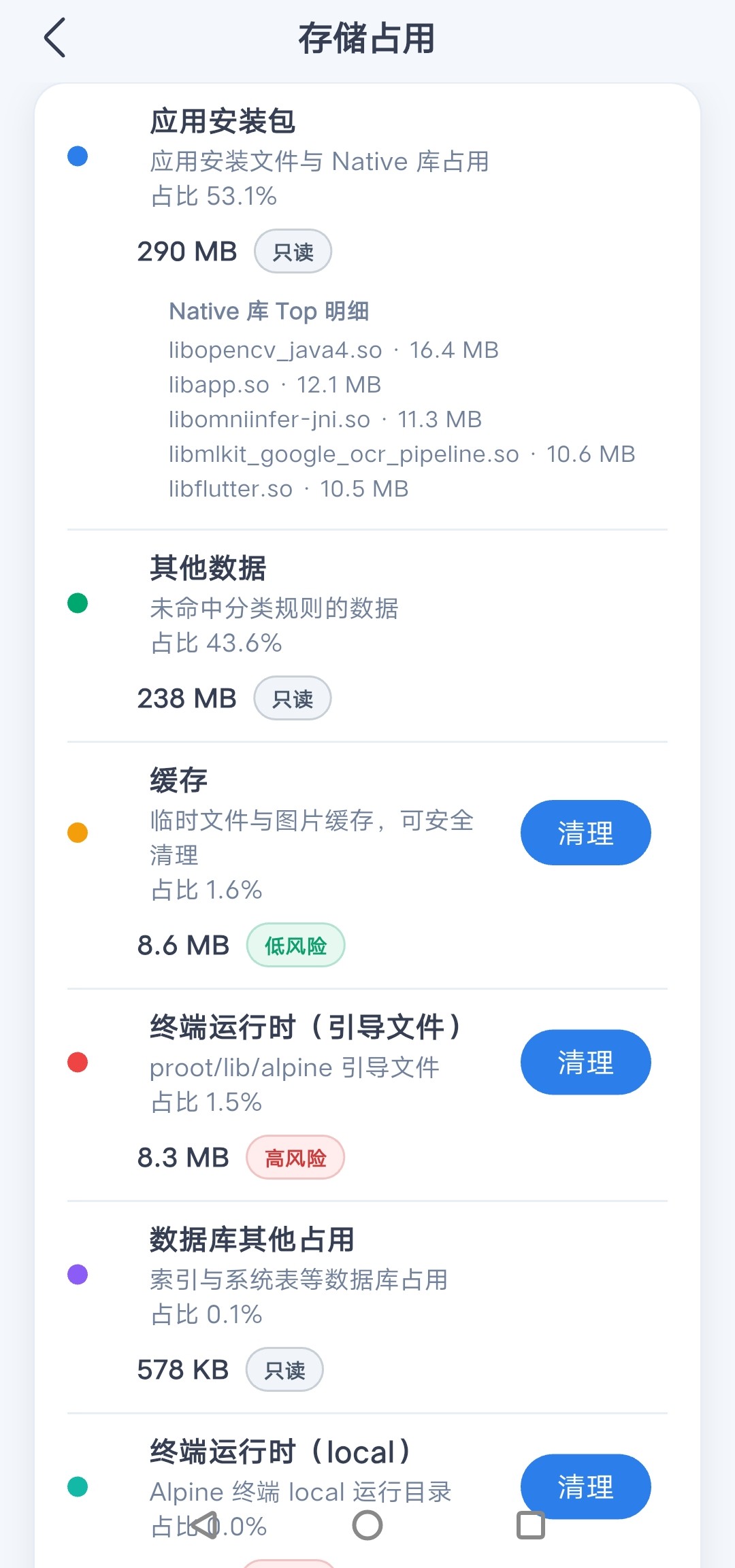
3. Usage breakdown by category
The lower section breaks down usage by category so you can see exactly where space is going:
- Cache-type content
- Downloaded or imported resources
- Workspace-related files
- Attachments, generated artifacts, and historical execution results
- Other internal persistent data
A pie chart shows the proportion of each category, helping you decide whether to clean instead of blindly deleting everything.

4. Per-category cleanup
For categories that support cleanup, the page provides direct action controls.
This allows targeted removal of only what you intend, which is safer than bulk operations.
Recommended workflow
If this is your first cleanup, follow this order:
- Check the overview to confirm whether cleanup is actually needed
- Review the category breakdown to find the main contributors
- Clean low-risk content first
- If you only need temporary space, consider running the recommended strategy
- Re-analyze after cleanup to verify the result matches expectations
Notes
- Not all categories support partial cleanup. Some high-risk categories may only allow full removal.
- Clearing caches typically has low impact, but when removing historical artifacts, attachments, or workspace files, confirm first whether they still need to be retained.
- If local model storage is your main concern, use this page together with the Local Models page, since model deletion, import, and service state management are not fully handled here.
- The "reclaimable space" figure is best used as a decision aid and may not equal the final amount of system space actually freed.